A native, open-source screen recorder for macOS.
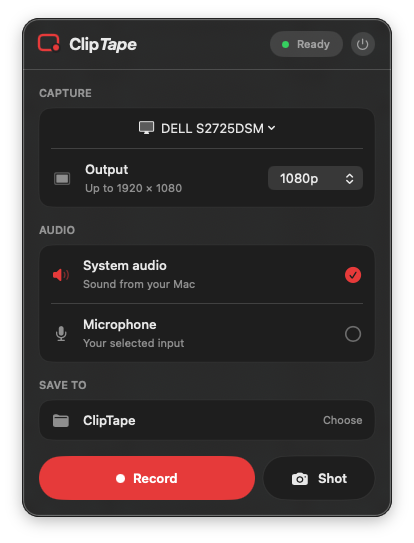
Record your Mac. Keep the file. ClipTape lives in your menu bar, captures system audio, and saves an ordinary MP4 directly to the folder you choose.

A short feature list,
on purpose.
No editor. No AI. No timeline, library, or project format to learn. ClipTape does the handful of things a screen recorder actually needs to do, and it does them where you already are, in the menu bar.
Display or window
Pick a whole display or one individual window. ClipTape discovers what is available and captures exactly that.
System audio
Capture the sound coming out of your Mac alongside the picture, in the same file.
Optional microphone
Add your voice when you want it. Microphone permission is only ever requested once you turn the microphone on.
Clean pause and resume
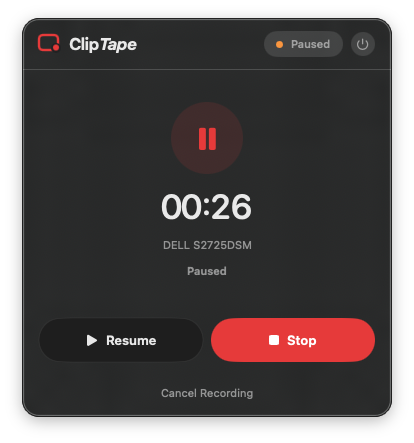
Pause, take a breath, resume. The paused gap never lands in the finished recording.
PNG screenshots
The Shot button captures a still at the same output resolution you picked for video.
Cancel without residue
Change your mind mid-take and cancel. No orphaned temporary segments left behind on disk.
Choose your resolution.
Keep the source pixels, or scale the output down to something more shareable. The same setting applies to recordings and to PNG screenshots.
Recordings finish as H.264 MP4 files in the save folder you choose. Nothing proprietary, nothing to export.
Pause. Resume.
No dead air.
Most recorders make you choose between stopping cold and leaving a long silent gap in the middle of your take. ClipTape stitches the recording back together so the paused time simply isn't there.
Illustrative timing. The paused stretch is removed, not silenced.
ClipTape is always explicit about where it is. Every state is visible in the window before you commit to anything.
Your recordings never leave your Mac.
This is not merely a policy you have to trust. It is a property of the software. Screen and audio content is written straight to the folder you picked, and that is the end of the story.
- Runs inside the macOS App Sandbox with a hardened runtime.
- Screen Recording permission is requested when capture access is needed.
- Microphone permission is requested only if you enable the microphone.
- No camera, contacts, location, calendar, photo library, or accessibility access.
- Finished recordings are never uploaded, indexed, transcribed, or inspected.
- Deleting ClipTape does not delete recordings saved outside the app.
Native Swift, top to bottom.
No Electron, no bundled web view, no cross-platform runtime. ClipTape is built on the frameworks Apple ships for exactly this job, which is why it needs macOS 15 or newer.
LSUIElement), so no Dock icon and no windows to manage.Install. Open. Record.
Install ClipTape from the Mac App Store, or download the signed and Apple-notarized DMG directly. No account, Xcode, or developer tools required.
ClipTape is a menu bar app, so nothing appears in the Dock. macOS will ask for Screen Recording permission the first time capture access is needed. The App Store version receives updates through the App Store. The direct-download DMG is ClipTape 0.1.0 beta 2 and does not update through the App Store. Developers can also build ClipTape from source.
Record what you need.
Understand the tradeoffs.
Straight answers about Mac screen recording, system audio, privacy, and open-source tools.
How to record your Mac screen with system audio
Capture a display or window, the sound playing on your Mac, and an optional microphone—without an audio-routing workaround.
Read the guide Honest comparisonOpen-source screen recorders for macOS
ClipTape, QuickRecorder, OBS Studio, and Kap solve different recording jobs. Compare their approaches before installing one.
Compare the toolsBefore you press record.
Is ClipTape free and open source?
Yes. ClipTape is free to download, its complete source code is public, and it is released under the MIT License.
Can ClipTape record system audio on a Mac?
Yes. ClipTape can record the sound playing on your Mac together with a display or window. Microphone capture is optional and controlled separately.
Does ClipTape upload recordings or add a watermark?
No. ClipTape saves ordinary MP4 files directly to the folder you choose. It has no cloud service, account, telemetry, or watermark.
Which versions of macOS does ClipTape support?
ClipTape 1.0 requires macOS 15 or newer because it uses Apple’s modern ScreenCaptureKit recording APIs.

Press record.
Do the thing.
Press stop.
That's the whole product. The file is already on your Mac.